AndroidTV Ultimate connects Homebridge directly to Android TV and Google TV over the local network. It pairs through the television's six-character code, tracks authenticated connection state, follows DHCP address changes, and does not require ADB, a cloud account, or a separate pairing server.
I wanted my Android TV devices to behave like dependable Apple Home accessories, not optimistic switches.
If a television was disconnected, Apple Home needed to show it as off. If DHCP changed its address, Homebridge needed to find it again without losing the pairing. App inputs needed to reflect what the television was actually running. Pairing, diagnostics, backups, and device configuration needed to live inside the Homebridge interface instead of being spread across command-line scripts and temporary services.
That is why I built AndroidTV Ultimate, an open-source Homebridge platform for Android TV and Google TV. Version 0.5.2 is now available on npm.
The problem I wanted to solve
Controlling an Android TV from HomeKit sounds simple: expose power, send remote keys, and add a few app buttons. The hard part is making those controls trustworthy over time.
A television is not continuously reachable in every standby mode. Its IP address may change. Wi-Fi and HDMI-CEC behavior vary by model. Some Android commands have portable key codes, while others depend on a manufacturer's firmware. An app can launch successfully without providing an obvious way for Homebridge to confirm the active input. A network connection can also exist before Android's remote protocol is ready to accept commands.
I treated these as state and identity problems rather than just remote-control problems.
Each configured device therefore has its own:
- Remote Service connection and readiness state
- Pairing certificate and private key
- Discovery identity and cached endpoints
- Reconnection loop and disconnect grace period
- HomeKit accessory state
- Input mappings and learned foreground packages
- Wake-on-LAN and optional CEC wake configuration
One television going offline cannot overwrite another television's state. A device becomes on only after its own authenticated remote connection succeeds.
Local control through Android Remote Service v2
AndroidTV Ultimate communicates with Android's Remote Service v2, the same local protocol family used by modern Android TV remote experiences. It uses two TCP endpoints on the television:
| Purpose | Default port | Authentication |
|---|---|---|
| Secure pairing | 6467 | Six-character code shown by the television |
| Remote control | 6466 | Mutual TLS with the paired client certificate |
Pairing creates an individual client certificate and private key for each device. The credentials are stored inside the Homebridge storage directory, outside config.json, with owner-only file permissions. Pairing codes, private keys, and certificates are excluded from diagnostics.
The plugin does not use:
- ADB or Android developer mode
- A vendor cloud API
- A Google account
- Analytics or telemetry
- A separate web server for pairing
- Non-standard Homebridge startup arguments
The television and Homebridge still need normal local-network reachability. This is local-first software, not a way to bypass VLAN policy or a television's own remote-control security.
Pairing from the Homebridge dashboard
The shortest setup path is:
- Install
homebridge-androidtv-ultimatefrom the Homebridge plugin page. - Add the AndroidTV Ultimate platform.
- Open its settings and select Scan Network.
- Choose the discovered Android TV or Google TV device and select Pair.
- Keep the six-character hexadecimal code visible on the television and enter it in Homebridge.
- Save the configuration and restart Homebridge.
The device then appears in Apple Home as a Television accessory. No per-TV external HomeKit bridge is required; devices can use the main Homebridge bridge or a configured child bridge.
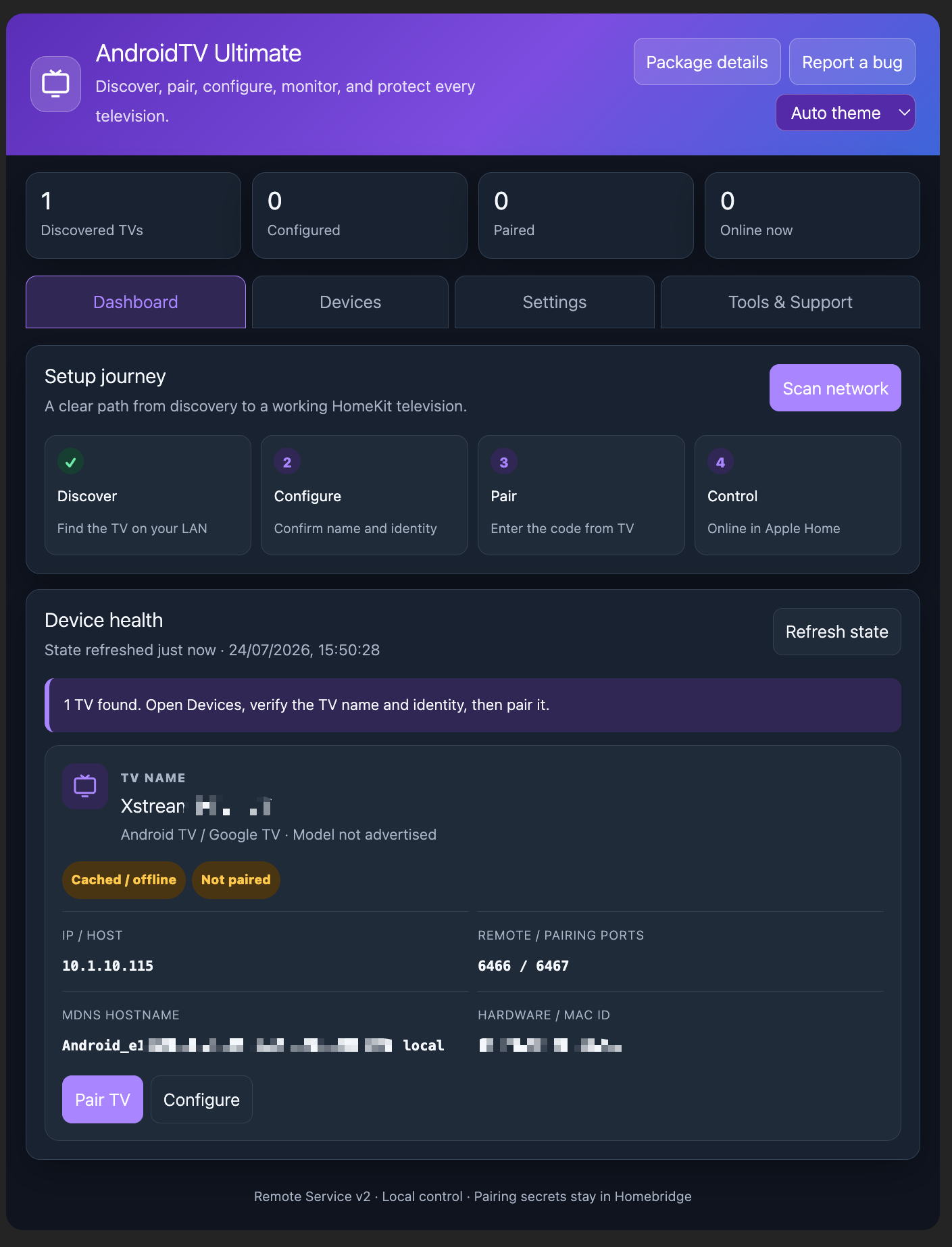
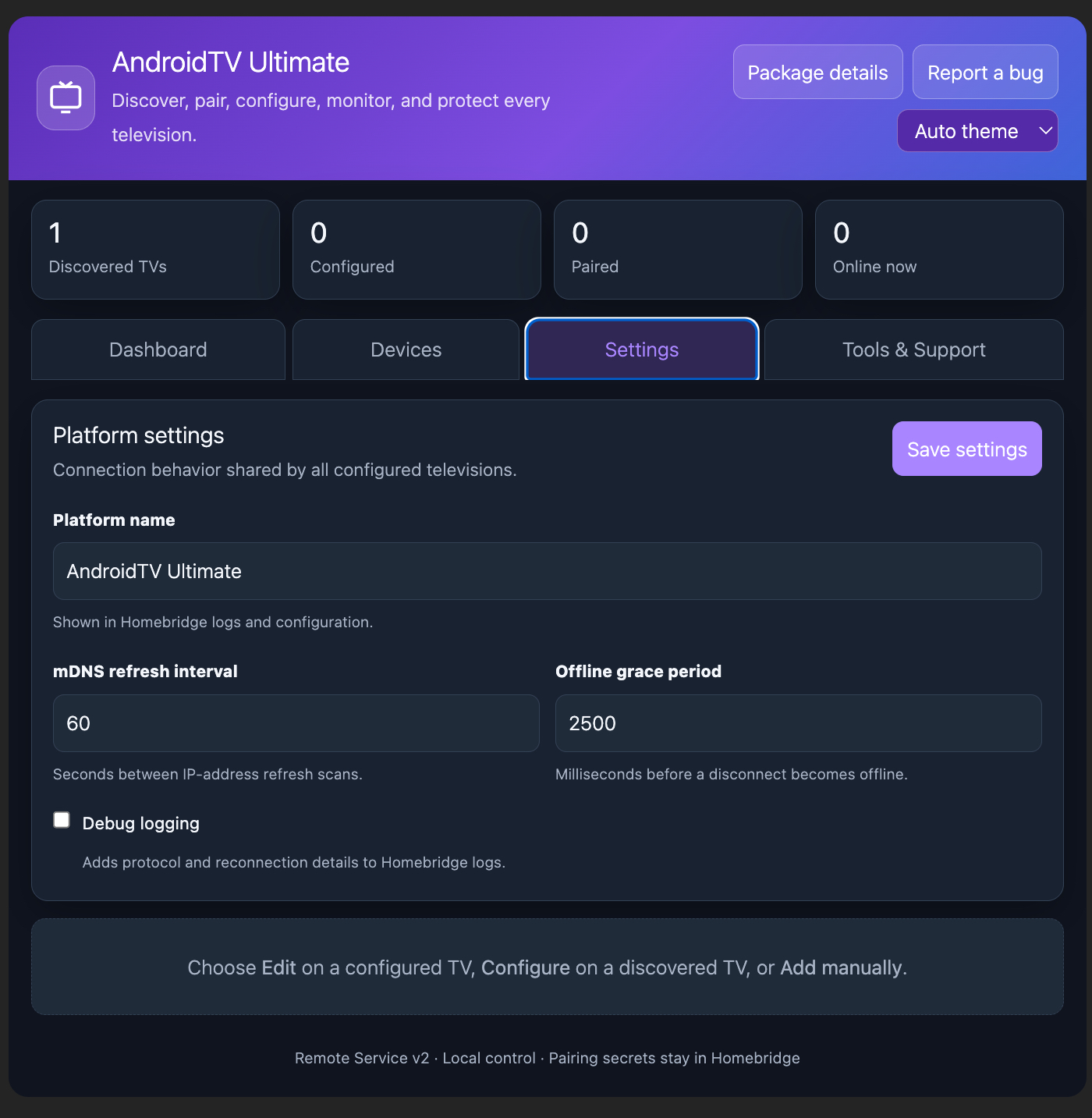
The custom interface is divided into four areas:
- Dashboard for setup progress, device totals, and health
- Devices for discovery, pairing, endpoints, and connection tests
- Settings for device profiles, controls, inputs, Wake-on-LAN, and CEC wake
- Tools & Support for diagnostics, encrypted backup, restore, and migration
The interface supports light, dark, and automatic themes and keeps configuration tasks inside Homebridge.
Why the power state is more accurate
It is tempting for a Homebridge plugin to assume a television is on because it exists in the configuration or because a wake command was sent. AndroidTV Ultimate does neither.
The initial state is deliberately conservative:
connection: offline
power: off
The accessory changes to on only when mutual TLS authentication succeeds and Android completes the server-led configuration handshake. The plugin waits for the protocol's remote-ready signal before reporting the connection online or sending commands.
If the connection drops, a short grace period filters momentary Wi-Fi interruptions. The default is 2.5 seconds. When that period expires without reconnection, Apple Home receives an off state.
This state represents authenticated Android remote availability, not a direct measurement of electrical power. It is nevertheless much more useful than defaulting an unreachable television to on.
Wake behavior follows the same rule. Sending a Wake-on-LAN packet or activating a CEC helper does not immediately produce a successful on state. The target television must reconnect and authenticate before HomeKit confirms it.
Discovery that survives DHCP changes
Android TV devices advertise Remote Service v2 through mDNS as _androidtvremote2._tcp.local. AndroidTV Ultimate reads the service name, hostname, port, TXT metadata, IPv4 address, and IPv6 address, then stores a discovery cache under the Homebridge storage directory.
The cache solves two practical problems:
- A powered-off television remains visible in the Homebridge dashboard.
- A paired television can be recognized after DHCP assigns it another IP address.
The matching process prefers strong identities such as the saved device ID, network MAC, and Android discovery identifier before falling back to service names, hostnames, previous endpoints, or an unambiguous display name.
When the same television advertises a new address, the plugin updates its endpoint and reconnects without replacing its HomeKit accessory or Remote Service credentials.
IPv4 is preferred when a device advertises both IPv4 and a link-local IPv6 address. Manual host configuration remains available for networks where multicast discovery cannot cross the Homebridge boundary.
Remote controls and device profiles
The plugin exposes the controls supported by Apple Home and Android's remote protocol, including:
- Power
- Directional navigation and Select
- Home, Back, Exit, Menu, and Information
- Play/Pause and media navigation
- Volume up, volume down, absolute volume, and mute
- Television inputs for apps, deep links, and hardware sources
Each device can independently enable or disable Power, navigation, media, volume, mute, inputs, and Wake-on-LAN. Android key codes can be overridden from the settings interface for firmware that expects a device-specific command.
A device can also be presented as a Television, Set-top Box, Streaming Stick, Apple TV, Audio Receiver, Speaker, or HomePod-style accessory. The selected profile determines whether Television, Speaker, or Smart Speaker is the primary HomeKit service.
Apple Home controls and icons are still constrained by HomeKit's available services and categories. A presentation profile cannot make unsupported Android firmware behavior appear magically.
Inputs that can be tested before saving
Input configuration grew into one of the most useful parts of the project. An input can represent:
- An Android TV application package
- A URI or application deep link
- HDMI
- Tuner
- USB or another source selector
- A custom numeric Android key command
The settings interface includes a searchable input catalogue. It loads the bundled or last-known-good copy immediately, then refreshes a validated JSON catalogue from GitHub in the background. A network outage or invalid remote file cannot replace the working cache.
Users can also save custom entries to My presets and reuse them on other configured devices. Adding a preset creates an independent copy, so editing the library does not silently rewrite existing television inputs.
Every input row has a Test input action. It sends the current unsaved package, link, or key command to a paired online device. For app inputs, the plugin watches foreground-package feedback for up to ten seconds and can offer to use the detected package. The test does not save the configuration or create a learned mapping without confirmation.
When Android reports a foreground package matching a configured input, Apple Home selects that input automatically—even when the app was opened using the physical remote or another controller.
Hardware inputs are less consistent. A command may switch HDMI successfully without Android reporting a foreground package that confirms which source is active. In that case, Homebridge can send the command but cannot claim verified input feedback.
Wake-on-LAN and the HDMI-CEC workaround
Wake-on-LAN is the cleanest way to wake a supported television. Configure the television's actual Ethernet or Wi-Fi MAC address and enable its network standby or quick-start feature. A Bluetooth identifier from mDNS is not a substitute for the network MAC.
Some televisions disconnect their network interface too deeply for Wake-on-LAN to work reliably. For those devices, AndroidTV Ultimate can use another paired Android device—such as a set-top box—as a CEC wake helper.
The sequence is:
- Apple Home requests the target television to turn on.
- The plugin wakes or powers the paired helper device.
- After a configurable delay, it sends Home to the helper.
- The helper asserts its HDMI source.
- HDMI-CEC turns on the television and selects that source.
- The target remains off in Apple Home until its own Remote Service connection returns.
Wake-on-LAN and the CEC route can be dispatched together when both are configured. The helper is never powered off when the target turns off, and helper chains are not followed recursively.
This is a pragmatic recovery path, not universal HDMI control. Its reliability depends on the television, set-top box, HDMI path, and CEC settings.
Docker, VLANs, and local network requirements
Homebridge users frequently run plugins inside Docker or across separate IoT VLANs. Remote Service itself is ordinary TCP, but discovery and Wake-on-LAN use multicast and broadcast traffic that may not cross those boundaries automatically.
The required traffic is:
| Protocol | Destination | Purpose |
|---|---|---|
| UDP | 224.0.0.251:5353 | mDNS discovery |
| TCP | Television port 6467 | Pairing |
| TCP | Television port 6466 | Authenticated remote control |
| UDP | Local broadcast, normally port 9 | Optional Wake-on-LAN |
Host networking is the simplest Docker arrangement for mDNS and broadcast discovery. On segmented networks, permit only the necessary traffic and reflect mDNS between the relevant VLANs. If multicast is intentionally unavailable, configure the television host manually.
Pairing can fail even when a television appears in a scan if TCP port 6467 is blocked. Similarly, a paired device can remain offline if Homebridge cannot reach port 6466. The dashboard's connection test and privacy-safe diagnostics are designed to distinguish discovery, pairing, and remote-control failures.
Backup without exposing private keys
Pairing every device again after rebuilding Homebridge would be frustrating. The plugin can create a passphrase-protected backup containing:
- Platform and device configuration
- Remote Service certificates and private keys
- Discovery identities and endpoints
- Last-known connection state
- Learned app-package mappings
- Reusable personal input presets
The file is encrypted with AES-256-GCM using a key derived from the passphrase with scrypt. The passphrase is never stored and cannot be recovered. Public catalogue cache data is excluded because it can be recreated.
This plugin backup complements rather than replaces a full Homebridge backup. Apple Home bridge identities, cached accessories from other plugins, and unrelated Homebridge data still belong in the standard Homebridge backup.
What AndroidTV Ultimate cannot guarantee
The plugin is deliberately clear about the limits of the television and protocol:
- Wake-on-LAN requires hardware and firmware support.
- HDMI-CEC behavior varies between manufacturers and connected devices.
- Android does not define a portable direct command for every physical input.
- Some hardware input changes cannot be confirmed from foreground-app feedback.
- Absolute volume is translated into step commands using the range reported by the television.
- Fire TV, Remote Service v1, ADB control, and voice streaming are outside the current scope.
- Network segmentation can block multicast discovery even when direct TCP control would work.
The right behavior when confirmation is unavailable is to report that limitation, not fabricate a successful state.
Installation and compatibility
Install the current release from the Homebridge UI or with npm:
npm install -g homebridge-androidtv-ultimate
Version 0.5.2 supports:
- Homebridge 1.8 and Homebridge 2.x
- Node.js 20, 22, and 24
- Android TV and Google TV devices offering Remote Service v2
The project runs continuous integration on all three supported Node.js versions. Releases are tied to matching git tags, changelog entries, GitHub Releases, and npm source commits.
Open source and Homebridge verification
AndroidTV Ultimate is published under the MIT License. The source, issue tracker, input catalogue, release history, and contribution guidance are available on GitHub.
I have also submitted a Homebridge plugin verification request. That request is pending review at the time of writing, so the plugin should not be described as Homebridge-verified unless and until the Homebridge team accepts it.
Useful links:
- Install AndroidTV Ultimate from npm
- Read the full documentation
- Browse releases and changelogs
- Report a reproducible issue
- Contribute or correct an input preset
Final thoughts
The visible part of a television plugin is a power tile and a remote. The more important work sits underneath: preserving identity, proving connectivity, recovering from address changes, protecting credentials, and refusing to report success before the television confirms it.
AndroidTV Ultimate is my attempt to make those details boring and dependable. It keeps control on the local network, works with the security model already built into modern Android TV, and puts the full setup experience where a Homebridge user expects it—in Homebridge itself.

Written by
Tharun P Karun
Full-Stack Engineer & AI Enthusiast. Writing tutorials, reviews, and lessons learned.